 This tutorial by Tierney Steelberg, Digital Liberal Arts Specialist at Grinnell College’s DLAC, is licensed under a Creative Commons Attribution-NonCommercial-ShareAlike 4.0 International License.
Table of Contents
- What Is Omeka?
- Adding Items to the Course Site
- Retrieving Latitude and Longitude Coordinates
- Need Help?
What Is Omeka?
Omeka is an open-source content management system that allows users to build a website showcasing online collections and curated exhibits of digital content. You will add your objects as Items to the Omeka site, and a class map will be created based on the information you input.
In this course, you will be using Omeka Classic, hosted through Sites @ Grinnell. You can log in to the site back-end at https://globalmongolcentury.sites.grinnell.edu/admin/ with the username and password you set up.
For this project, you will need to fill out the Website/Online Work Consent Form at https://bit.ly/47S2rf3. You can choose to use an alias if you would prefer not to list your own name.
Adding Items to the Course Site
You have been added to the course Omeka site with Contributor user permissions: this means you can add, edit, and delete your own items (but not items added by others).
Once you’ve identified your item and gathered its information, you’re ready to add it to the course Omeka site – Omeka’s strength is metadata (data about data, in this case descriptive information about the items at hand), so you’ll fill out fields of information relating to the item:
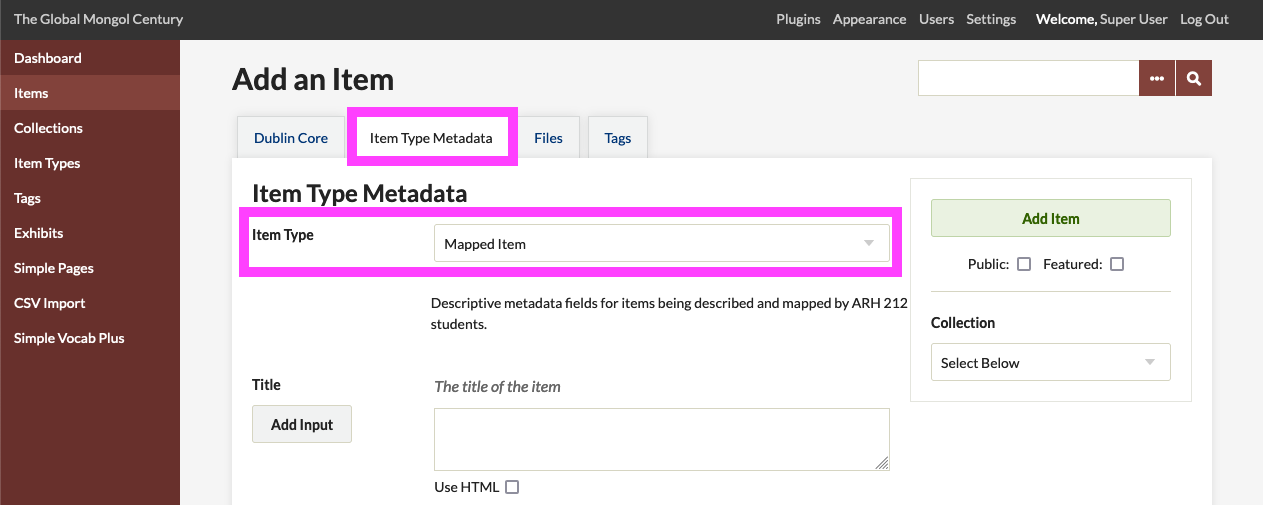
- Go to the Items tab on the left.
- Click the Add an Item
- Click the Item Type Metadata tab at the top.
- From the Item Type dropdown, select Mapped Item.
- Input your item metadata into the relevant fields (and leave others blank).
- Title: the title of the item
- Medium: the artistic medium of the item (select from dropdown)
- Creator: an entity primarily responsible for making the item (can be unknown)
- Description: your description of the item
- Source: the source of the object if there is one (such as a museum)
- Date: a point or period of time associated with the item (can be approximate)
- Location: an approximate or estimated location for the item
- Latitude: latitude coordinates for the location (numeric)
- Longitude: latitude coordinates for the location (numeric)
- Contributor: your name or alias, as the person contributing this item to the course site
- Navigate to the Files tab at the top to add one or more images (please make sure it is one that you have permission to reuse on a non-commercial educational site): click Browse… and select the image files from your computer.
- Click the green Add Item button at the top the right-hand side once finished.
Any of this information can be expanded upon or modified later – just click “Edit” under the item title in the item list. You can also delete items from here as well.
Retrieving Latitude and Longitude Coordinates
Latitude and longitude coordinates for a particular geographic location will be needed to map your item. You can retrieve these coordinates from Google Maps following these instructions:
- Go to https://maps.google.com and enter in the search bar the name of the place whose coordinates you want to retrieve – or find the place on the map and right click on it.
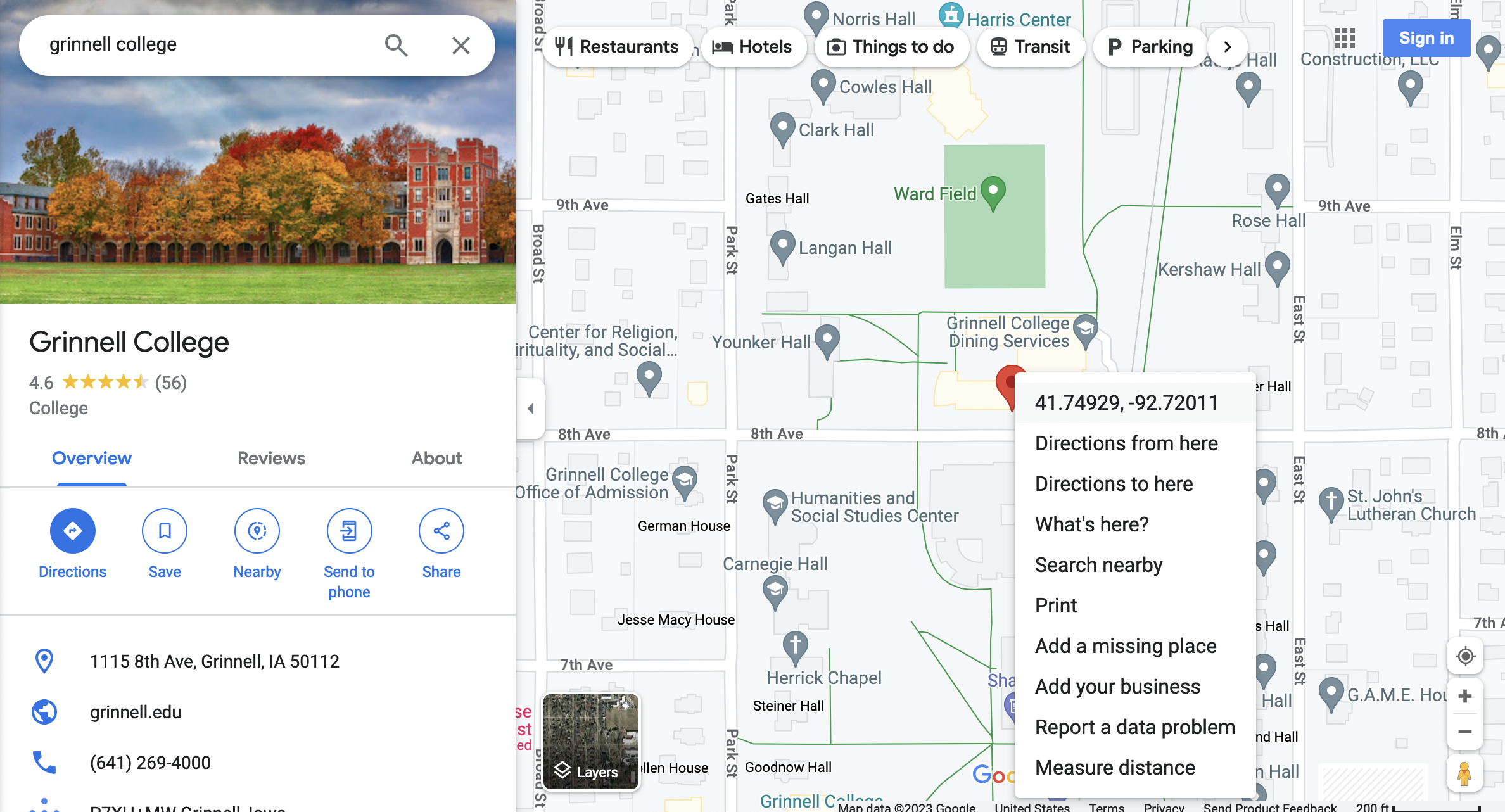
- Once the map loads, right click on the red pin marking the place on the map.
- The latitude and longitude coordinates appear at the top of list of options (see screenshot below): click it to copy them onto your clipboard.
- Enter these coordinates in the relevant Item Type Metadata fields Omeka: the first set of coordinates is the latitude, and the second set is the longitude.
Need Help?
If you have questions, need help, or get stuck along the way, there are support resources there for you!
- Vivero Digital Fellows trained in a variety of digital tools and approaches (including Omeka!) hold peer mentoring drop-in hours from 7-9 PM in the Burling Library Media Room (lower level) Sundays through Thursdays, starting on Tuesday 9/5.
- Tierney Steelberg, Digital Liberal Arts Specialist is also available to assist: email steelber@grinnell.edu
