 This tutorial by Tierney Steelberg, Digital Liberal Arts Specialist at Grinnell College’s DLAC, is licensed under a Creative Commons Attribution-NonCommercial-ShareAlike 4.0 International License.
Table of Contents
- What Is Pressbooks?
- Logging In
- Pressbooks Overview
- Hands-on Practice
- Media & Copyright Considerations
- Accessibility
- Get Help
What Is Pressbooks?
Pressbooks is a digital publishing platform geared towards the creation and publication of open access books and textbooks. Pressbooks uses a customized version of WordPress on the back-end for book editing and organization – so if you’ve used WordPress before, the book dashboard may look familiar to you!
Many open access books and textbooks use Pressbooks as their publishing platform. Check out the Pressbooks User Guide to see a Pressbook in action – and browse the Pressbooks directory to read books on a variety of topics.
Logging In
You have been added as users with the Author role to the course book, meaning you have the ability to create and edit your own chapters. To activate your account:
- Look for an email with [Pressbooks Create] in the subject line and click the link at the bottom of the email to activate your account.
- You’ll get a page saying your account is active with a password listed. Copy this password.
- Click Sign In at the top of the page and log in with your email and the password you copied.
- From the Pressbooks dashboard, hover over My Books in top left-hand corner and click the course book title to get to the course book.
- Optionally, go to Users > Profile to edit how your name shows up in the book.
In the future, you can log in to the course book at https://pressbooks.pub/his283sp2023/wp-admin for HIS 283 and at https://pressbooks.pub/his233sp2023/wp-admin for HIS 233– feel free to bookmark this link!
FYI: the Pressbook accounts for this course book are tied to Pressbooks, not this particular book – if you use Pressbooks again in a Grinnell course, you will log in with the same email/username and password (which you can always reset as needed).
Pressbooks Overview
For HIS 283 students, your class book is organized into multiple parts, corresponding to the thematic groupings of your topics. Each of you will contribute a chapter to your group’s part, as well as an introductory chapter at the beginning of the book.
For HIS 233 students, your class book will have one main part, to which you will each contribute a chapter.
With the Author role, each of you has the ability to create, edit, and publish your own chapters. You do not have the ability to edit your classmates’ chapters or to administer the book as a whole.

Follow these instructions to create a new chapter and start getting the hang of Pressbooks:
- From the sidebar menu, click Organize.
- Click the Add Chapter button next to the “For Class Testing Purposes” section (this section is for testing out Pressbooks and will be deleted later).
- Chapters can be moved as needed from the “Part” dropdown on their editing page – no worries at all if you accidentally create your chapter in the wrong part!
- Write your chapter content in the text editor (or write it in elsewhere and paste it in): use the buttons at the top to format and style your content as desired. If you know HTML, you can use the Text tab (top right) to edit the code.
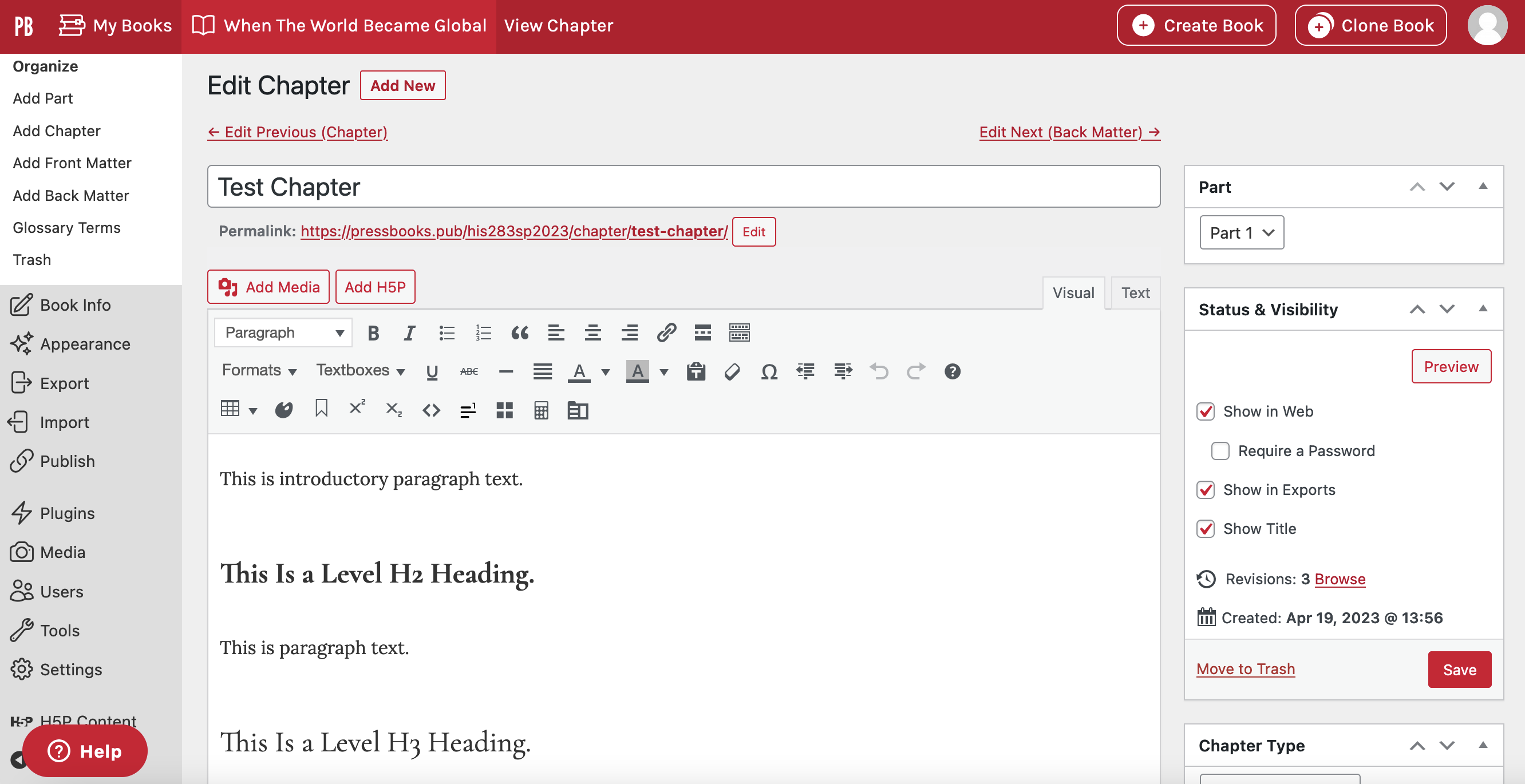
- Play around with the options under Formats and Textboxes: these may be useful for your primary source inserts, or other inserts as desired.
- Use the footnote button
 (bottom row) to add a Chicago-style footnote citation: a pop-up will appear, and you will enter your citation in the pop-up text box. Your footnote will then appear as [shortcode] in its location, and you can edit the styling (for example, italicize the title) as needed.
 - Add Media by clicking the red Add Media button above the text editor and uploading the file from your computer. Files are uploaded to the book’s Media Library, and can be re-used across chapters.
- Don’t forget to add alt text for your media (under Attachment Details on the right)!
- Scroll down below the text editor and edit your chapter metadata: title and subtitle, your name as the chapter author.
- Go to Users (in the sidebar menu) > Profile to edit how your name shows up as chapter author.

- Go to Users (in the sidebar menu) > Profile to edit how your name shows up as chapter author.
- Click the Preview button (Status & Visibility box, on the right) to see what your chapter looks like to readers.
- Click the Save button on the right-hand side to save your changes!
Check out “Create and Edit Chapters” in the Pressbooks User Guide for more information and walkthroughs.
Hands-on Practice
Try it out yourself: starting from the “For Class Testing Purposes” part, write and publish a new chapter titled “Your Name: Test” that includes your answer to the question “What do you find most exciting about learning to use Pressbooks, and what do you find most challenging?” and an embedded image or piece of media.
Media & Copyright Considerations
Since this website is private, you don’t have to worry about copyright takedowns, which means you can feel free to use any images and media you choose, as long as you cite it correctly: only Prof. Chou and your classmates will be able to view your chapter and the multimedia content you include.
Accessibility
“Web accessibility is the inclusive practice of ensuring there are no barriers that prevent interaction with, or access to, websites on the World Wide Web by people with physical disabilities, situational disabilities, and socio-economic restrictions on bandwidth and speed.” (Wikipedia).
As you write your chapters, keep accessibility in mind – think about:
- ensuring a logical document/page structure (nesting headings correctly H2 > H3 > H4…)
- breaking up walls of text
- being thoughtful in your use of color: appropriate color contrasts, avoiding colors that are too bright, being careful when using colors to convey meaning…)
- using a legible typeface and font size
- providing text alternatives to multimedia content (alt text for images, captions or transcripts for videos)
- writing links that make sense out of context (avoid “click here”)
See “Make Your Books Accessible and Inclusive” in the Pressbooks User Guide for more information.
Get Help
If you have questions, need help, get stuck, or want support trying something new, there are support resources out there for you!
- Pressbooks User Guide at https://guide.pressbooks.com/
- Vivero Digital Fellows trained in a variety of digital tools and approaches (including WordPress, which Pressbooks uses on the back-end) hold peer mentoring drop-in hours from 7-9 PM in the Burling Library Media Room (lower level) Sundays through Thursdays.
- Tierney Steelberg, Digital Liberal Arts Specialist: email steelber@grinnell.edu
