 This tutorial by Tierney Steelberg, Digital Liberal Arts Specialist at Grinnell College’s DLAC, is licensed under a Creative Commons Attribution-NonCommercial-ShareAlike 4.0 International License.
Table of Contents
- What Is WordPress?
- Discussion: What Makes a “Good” Blog Post or Webpage?
- Course WordPress Website
- Writing a Blog Post
- Copyright & Finding Reusable Images on the Web
- Accessibility
- Get Help
What Is WordPress?
WordPress is a powerful, open-source content management system for building websites. Over 40% of existing websites on the web were built using WordPress.
What you will use for this course website is a self-hosted instance of WordPress (WordPress.org), hosted by Reclaim Hosting through Sites @ Grinnell, available for free to any member of the Grinnell College community. These WordPress sites are different from a WordPress.com site, which come with advertisements, restrictions on what can be done on the back-end, and a domain ending in wordpress.com.
Discussion: What Makes a “Good” Blog Post or Webpage?
Let’s consider this together!
- Content
- Make a firm argument, take a stance
- Attention-grabbing title and first paragraph, to make sure that it’s engaging
- Blog should be something your grandma could read: accessible language, no technical jargon
- No obscenity, vulgarity, nudity, problematic images with regards to copyright
- Layout
- Easy to navigate: logical and makes sense in the way it is laid out – clear how to get to what you’re looking for
- Using images, graphs, screenshots of data to help visualize and provide evidence
- Design
- Consider different aspect ratios: desktop vs. laptop vs. phone
- Adding titles and subtitles for organization
- Aesthetically pleasing: use of color, fonts – how do you make people want to read it
Course WordPress Website
You should have received an email from wordpress@spn320.mirzamperez.sites.grinnell.edu inviting you to set up your account. Use the link provided to set up your password (minimum 15 characters; must contain letters, numbers, and special characters). Your username is your Grinnell College username, and your email address is your Grinnell College email.
Once you have set up your password, you can log in to the back-end of the course site at https://spn320.mirzamperez.sites.grinnell.edu/fall-2022/wp-admin/ and you can view the public, front-facing version of the course site at https://spn320.mirzamperez.sites.grinnell.edu/fall-2022/. You can use click “Lost your password?” on the site login page if you need a password reset link emailed to you.
From your site profile page (Users > Profile) you can make changes to your site profile as needed (name display, etc.).
You have each been added to the site with the Author role, meaning you can create, edit, and publish your own posts.
Writing a Blog Post
You will use WordPress’s Posts feature to write your reflections. Posts are site entries that appear on the site in reverse chronological order, and are associated with a particular author and timestamp.
Follow these instructions for creating or editing a post:
1. Click Posts in the left-hand navigation menu.
2. Click Add New if you want to create a new post, or click the title of an existing post if you want to edit it.
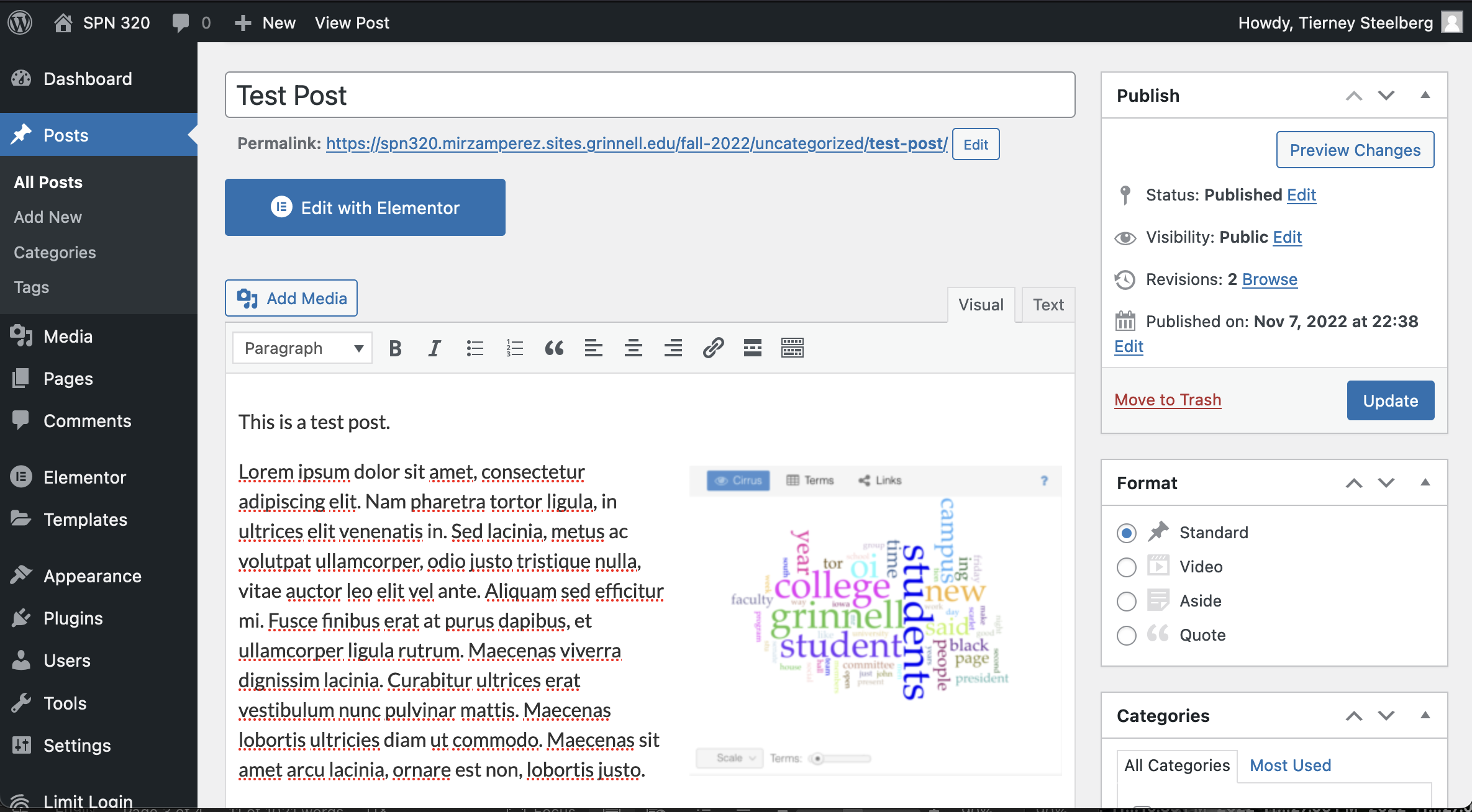
3. Use the text editor box to add or edit the content of your post. There are a variety of WordPress text editors: currently Sites @ Grinnell WordPress sites use the Classic Editor.
- Buttons at the top allow you to edit the font, styles, and layout (bulleted or numbered lists, text alignment, etc.).
- By highlighting text and clicking the insert/edit link button, you can associate a URL and turn that text into a hyperlink.
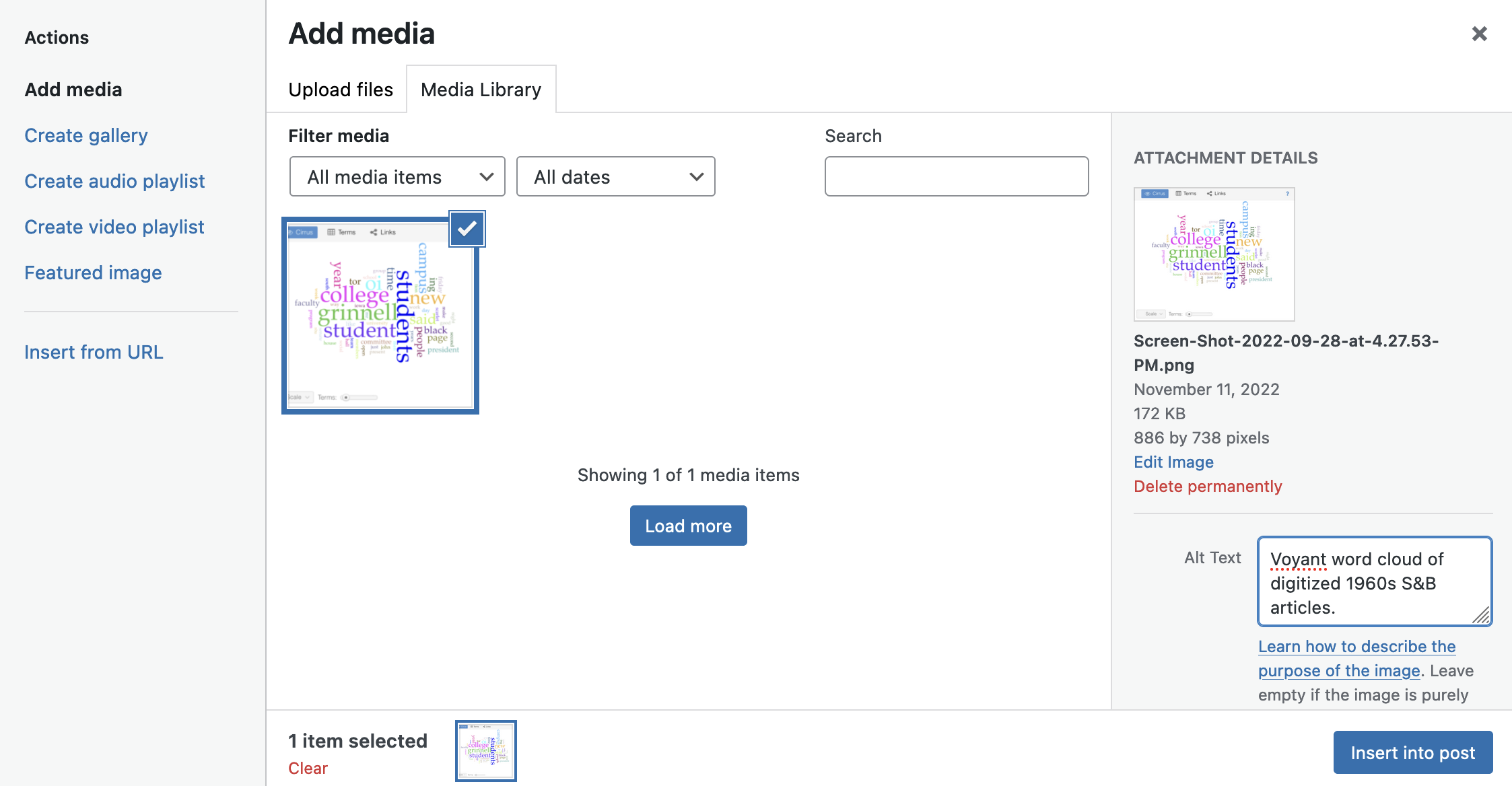
4. Use the Add Media button to insert images. You can select existing media from your Media Library, or click the Upload files tab to upload a file directly to a page (which will also automatically add it to your Media Library). It will be added to the page where your cursor is.
5. Add descriptive alt text (alternative text, a description of the image for users who cannot see it) for your image in the alt text box when you upload it to the page.
8. If you want to embed media from another site (such as a video on YouTube or a song in SoundCloud), you can paste a link to it in your Post: WordPress will automatically convert these links into an embed, for most platforms.
- You can also do this manually by copying the embed code (usually in an <iframe>), clicking the “Text” tab at the top of the WordPress text editor, and pasting the code where you want it to appear in the post’s HTML code.
7. When you’re ready, click Update or Publish to save and publish your changes – or click Save Draft if you’re not ready for it to be published yet. Don’t forget to save as you go, so your work is saved if you leave and come back.
Copyright & Finding Reusable Images on the Web
Since this website is public, it’s important to look for and use images that are licensed for you to reuse freely, without worrying about copyright.
- A Creative Commons license is a copyright license that allows works to be used by others. Different types of Creative Commons licenses exist, with differing restrictions (attribution, share alike, no derivatives, non-commercial).
- Works in the public domain are freely available to the public as a whole and are not subject to copyright laws.
If an image is copyrighted, or you are unsure of an image’s copyright status, do not use it on the website.
Here are some resources for finding Creative Commons & public domain images:
- The Creative Commons Website
- Unsplash (freely reusable stock photos shared by creators)
- Flickr (filter your search results by license using dropdown below search bar)
- Wikimedia Commons (user-uploaded pictures – public domain & CC-licensed)
Accessibility
“Web accessibility is the inclusive practice of ensuring there are no barriers that prevent interaction with, or access to, websites on the World Wide Web by people with physical disabilities, situational disabilities, and socio-economic restrictions on bandwidth and speed.” (Wikipedia).
As you write your blog posts, keep accessibility in mind – think about:
- ensuring a logical document/page structure (nesting headings correctly H2 > H3 > H4…)
- breaking up walls of text
- use of color: appropriate color contrasts, avoiding colors that are too bright, being careful when using colors to convey meaning…)
- legible typeface and font size
- providing text alternatives to multimedia content (alt text for images, captions or transcripts for videos)
- writing links that make sense out of context (avoid “click here”)
See WebAIM’s Introduction to Web Accessibility to learn more.
You can use these resources to check your work:
- Evaluate general site accessibility with the WAVE Web Accessibility Evaluation Tool
- Check color contrasts with WebAIM’s Contrast Checker.
- Check accessible color selection with Toptal’s Colorblind Web Page Filter or the Colorblindly Chrome extension.
Get Help
If you have questions, need help, get stuck, or want support trying something new, there are support resources out there for you!
- Vivero Digital Fellows trained in a variety of digital tools and approaches (including text analysis and WordPress!) hold peer mentoring drop-in hours from 7-9 PM in the Burling Library Media Room (lower level) Sundays through Thursdays every week while classes are in session.
- Tierney Steelberg, Digital Liberal Arts Specialist, is available to help you with questions, technical issues, and trying out new things: email steelber@grinnell.edu.
- Liz Rodrigues, Humanities and Digital Scholarship Librarian, is available to help you with questions, technical issues, and trying out new things: email rodrigue8@grinnell.edu.
