 This tutorial by Tierney Steelberg, Digital Liberal Arts Specialist at Grinnell College’s DLAC, is licensed under a Creative Commons Attribution-NonCommercial-ShareAlike 4.0 International License.
Table of Contents
Click any link to head to that section.
- What is Gale Digital Scholar Lab?
- Building a Content Set
- Cleaning Your Content Set
- Analyzing Your Content Set
- Get Help
What Is Gale Digital Scholar Lab?
Gale Digital Scholar Lab is an online platform, licensed through the Grinnell College Libraries, which provides a suite of digital humanities tools to search, format, and analyze texts drawn from Gale primary-source databases in the libraries’ collection, complete with a variety of data visualization options. This kind of analysis of large groupings of texts is known in digital humanities as text analysis, textual analysis, or text mining.
Logging In
You can access Gale Digital Scholar Lab from the Libraries’ A-Z Database list, or by using this stable URL. If not on campus, you may be prompted to log in upon clicking the link.
In order to use Gale Digital Scholar Lab, you will need to create an account upon accessing the tool for the first time. Follow these instructions to do so:
- Click the orange “Log In/Create Account” button.
- Click the “Sign in with Microsoft” button.
- Enter your Grinnell Microsoft credentials.
- Once logged in, you should see your first name in the upper right-hand corner of the site.
Once you have created an account, you will be able to log in with your Grinnell Microsoft credentials following the same steps. The work that you do in the Digital Scholar Lab is saved in the cloud to your account as you go, so your content sets and analysis will be there for you when you log back in.

Building a Content Set
To have text to analyze, you first need to build what Digital Scholar Lab calls a “content set.” Some other text analysis tools refer to this as a “corpus” – basically, it is a collection of related documents.
Building a Content Set with Gale Documents
You can use Digital Scholar Lab to search for Gale primary source materials available through Grinnell College Libraries, and build content sets composed of primary source documents related to your research interests.
- Click the Build button in the top-level menu.
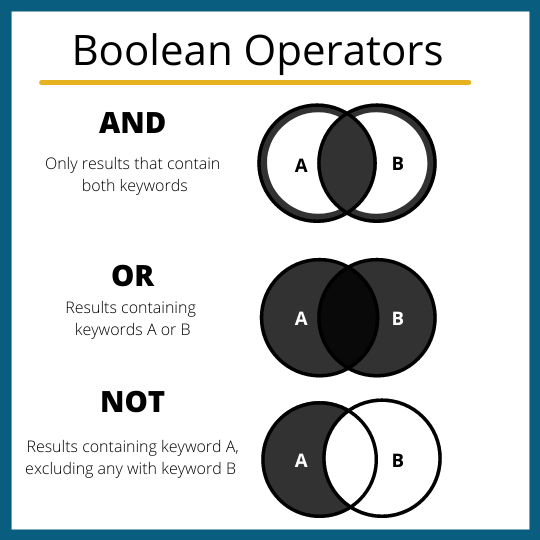
- To start your search, just scroll down to the search bar and type in some terms! You can do a basic search (that includes Boolean operators AND, OR, and NOT) to start finding results.
- You can click the “Advanced Search” option below the search bar for a more complex, refined search (which can include special search characters like quotation marks and wildcards). The Advanced Search lets you limit searches by location of publication, year/span of time, document type, etc.
- Here is a helpful diagram explaining Boolean Operators (source: Cecelia Vetter on Wikimedia Commons)
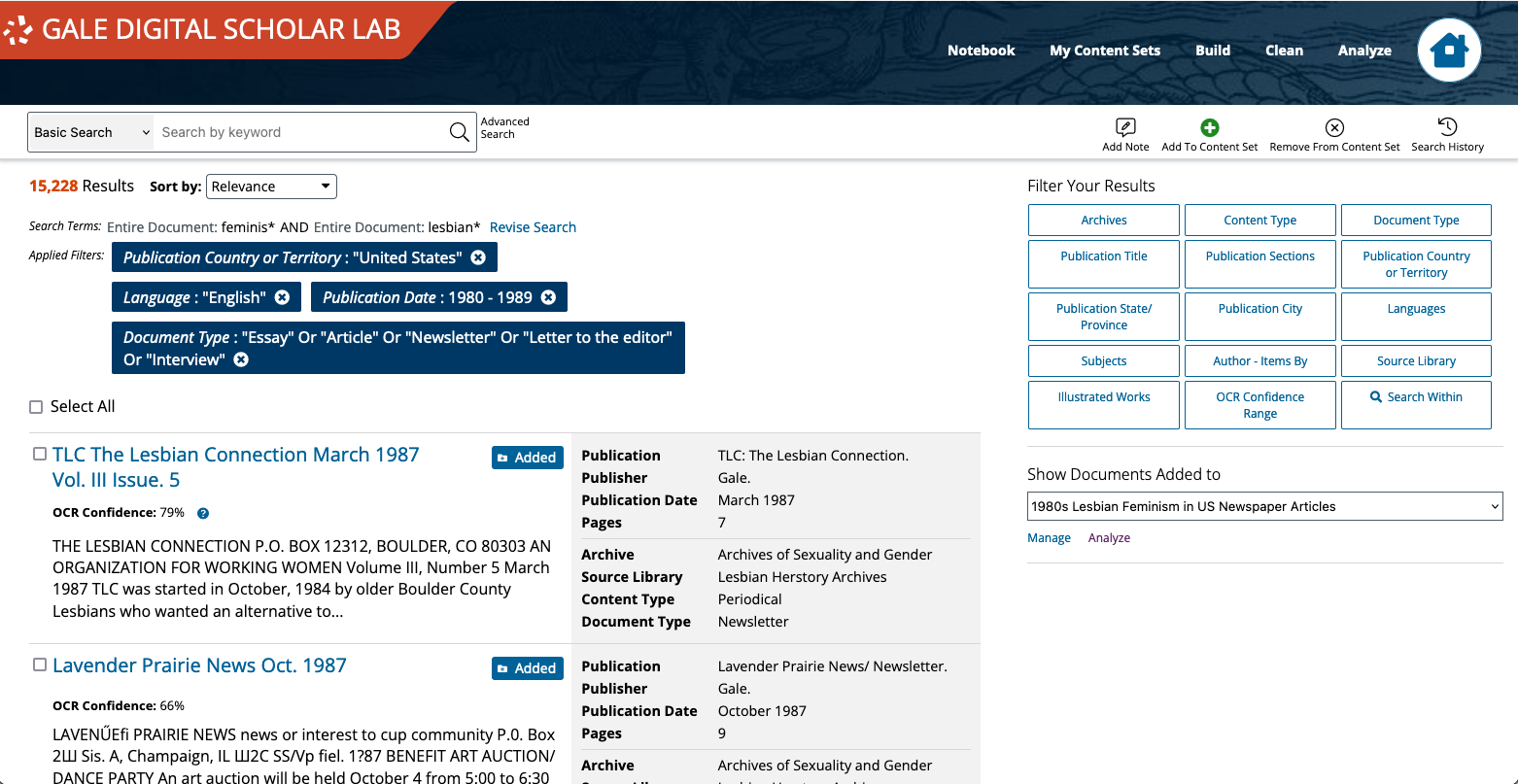
- Comb through your results: you can see document titles, snippets of the OCR (Optical Character Recognition) text, and the most relevant metadata.
- You can view documents in both their digitized forms and with the OCR text: put them side by side to evaluate accuracy. Some OCR attempts are more successful than others.
- Refine your search results as needed using the filters on the left-hand side of the search results page.
- When you find documents you want to analyze, add them to your content set by checking the box to the left of the title, and then the green “Add to Content Set” button at the top of the page. You can choose whether you would like to add documents to a new or existing content set.
- You can select multiple documents at a time, all the results on the page, or even all search results (up to 10,000 documents) to add all at once.
Learn more from the “Build” pages in Gale’s Learning Center.
Uploading Your Own Content
In addition to a building a content set using Gale primary sources, you can also upload files of your own to Digital Scholar Lab, to analyze on their own or alongside other content.
Please note that the files you upload must be plain text files (.txt file extension), and the file(s) you upload cannot exceed 10 MB at a time. For best results in text analysis, make sure your files are cleaned up beforehand.
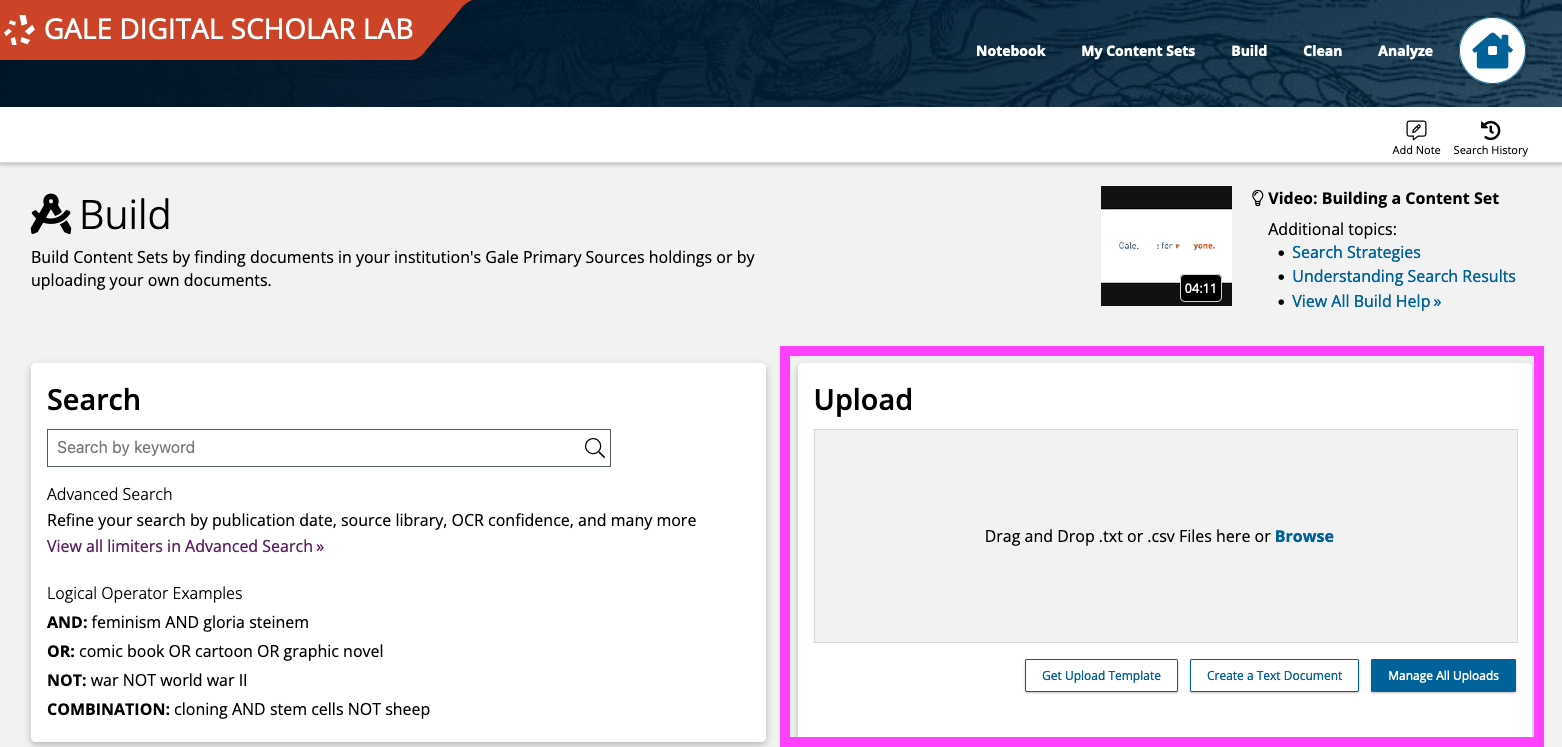
Follow this step-by-step walkthrough for uploading your own files (for example, Benjamin Shambaugh’s History of the Constitutions of Iowa, shared here and on PWeb):
- Click “Build” in the top level menu.
- Navigate to the “Upload” box on the right-hand side of the screen.
- Click “Browse…” and select one or more files from your computer to upload.
- Make sure your file appears in the “Successfully Uploaded” list.
- Recommended: click the “Add Metadata” button in the bottom left corner of the box to add relevant metadata (author, publisher, publication date…) to your file(s), for organizational purposes and to aid in some analysis.
- Check the box(es) next to your file(s) in the Successfully Uploaded list – make sure the boxes are checked, or your file(s) will not upload.
- Click the “Add to Content Set” button in the bottom right corner of the box.
- Choose whether you would like to add the file(s) to an existing or to a new content set.
- Add your file(s) to the content set.
- You will get a pop-up notifying you that your file(s) have been added to the content set.
Cleaning Your Content Set
“One of the most important elements of text analysis is making sure that your texts are formatted in a way that suits the kind of analysis you want to carry out. The Clean feature of the Gale Digital Scholar Lab lets you edit all the Documents within a Content Set. […] Once you have got your Content Set filled out with all the documents you need, it’s important to prepare it for analysis by cleaning the text. Cleaning a Content Set means stripping it of unwanted words or characters that would adversely affect your analysis.” (Source: Gale, “Clean”)
From the “Clean” tab in the top-level menu, you can create your own cleaning configurations as you learn more about Gale Digital Scholar Lab and about your documents and the cleaning they might need to help hone your analysis. But to start, you can use Digital Scholar Lab’s default cleaning configurations (with or without punctuation) to clean your content sets.
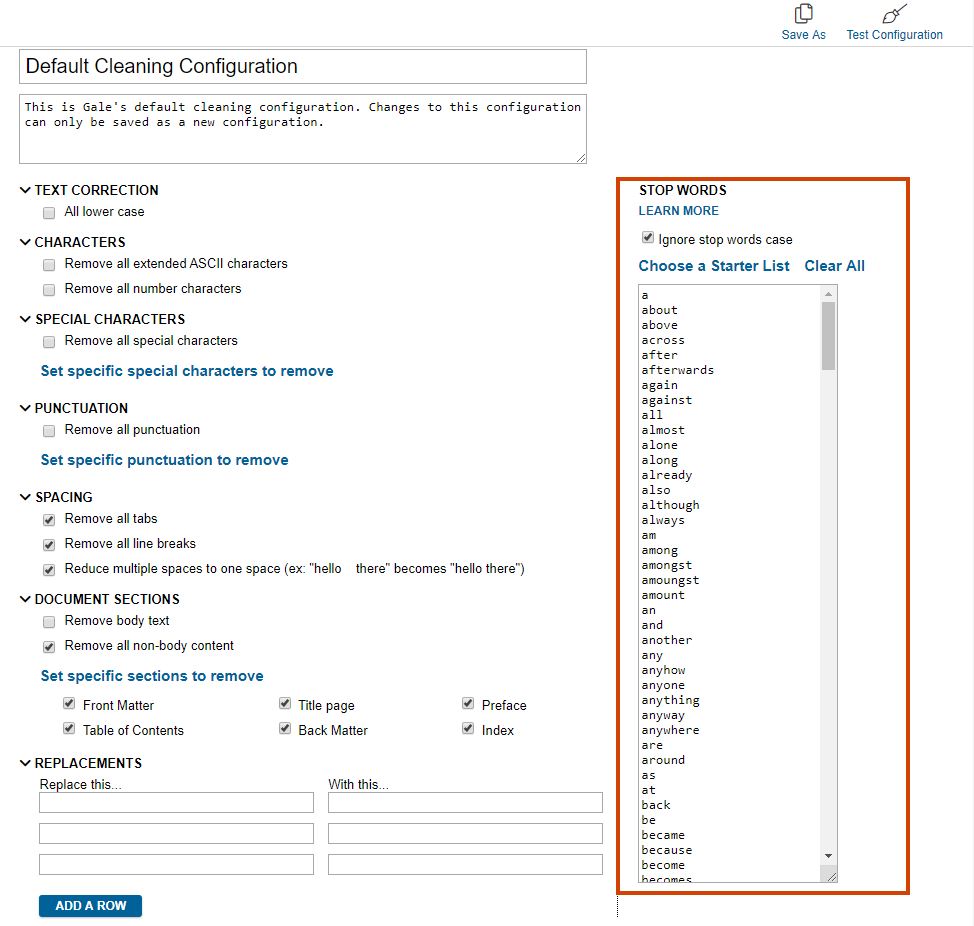
You can run through the various options for text cleaning and customize to your liking. Don’t forget the “Choose a Starter List” option in the right-hand “Stop Words” pane: this allows you to choose “stop words” (common words like “a”, “the,” etc. whose presence may negatively impact your analysis) to remove from the text as part of the cleaning. Digital Scholar Lab has stop word lists for many languages, and you can add your own words list to the list for your clean configuration as well.
Cleaning happens at the analysis level, so once you’ve decided on the clean configuration you want to use and refined it to your liking, head to the “Analyze” tab!
This is an iterative process: as you analyze your data and notice issues or words/characters you want to filter out, you can come back to adjust your cleaning configuration (or even create a new one), and run your analysis again.
Analyzing Your Content Set
Gale Digital Scholar Lab has a variety of analysis tools available for you to use in your text analysis.
Types of Tools
- Document Clustering: “Clustering analyzes the documents from a content set using statistical measures and methods to group them around particular features or attributes. The algorithm gathers all the points into the number of clusters required and colors the points belonging to each. Each cluster represents groups of documents that are more similar to each other than to the other documents within a Content Set.” (Source: Gale, “Document clustering”)
- Named Entity Recognition (NER): “Named Entity Recognition (NER) is a natural language processing method which seeks to identify and classify each term in the Content Set as specific entity categories or “classes”. […] Named Entity Recognition is often used to identify key people, places, and things within a Content Set. This tool can be useful when collecting data around place names for mapping, which can often be challenging to aggregate without the close reading of each document.” (Source: Gale, “Named Entity Recognition”)
- Ngrams: “A Ngram is nothing more than a sequence of words, where N represents the number of words. […] Ngrams are often used to compile search terms or words that are often associated with one another. This tool can be used to help determine if a Content Set contains specific terminology, or phrase, which otherwise can be difficult to trace without intensive reading of each Document.” (Source: Gale, “Ngrams”)
- Parts of Speech: “Parts of Speech uses natural language processing of syntax to recognize, and tag parts of speech. […] It provides users with the building blocks for looking at how phrases are constructed within each document in a content set. This tool effectively creates a lexicographical index or dictionary of a content set.” (Source: Gale, “Parts of Speech”)
- Sentiment Analysis: “Sentiment Analysis scores the words within a document using a predefined lexicon, in this case, the AFINN Lexicon by Finn Årup Nielsen, to denote the degree of positive, through neutral, to negative score, for a given word. There is a single layout for this visualization. It describes how Sentiment within the Content Set’s documents shifts and changes for documents published over a period of time.” (Source: Gale, “Sentiment Analysis”)
- Topic Modeling: “This tool implements the well-known topic modeling suite MALLET. It allows users to discover groups of words across the Documents in a Content Set that are statistically more likely to occur near each other. […] Topic modeling is a text mining method that allows user to discern patterns in their Content Set through the analysis of the high level topics assigned by MALLET.” (Source: Gale, “Topic Modeling”)
Setting Up Analysis
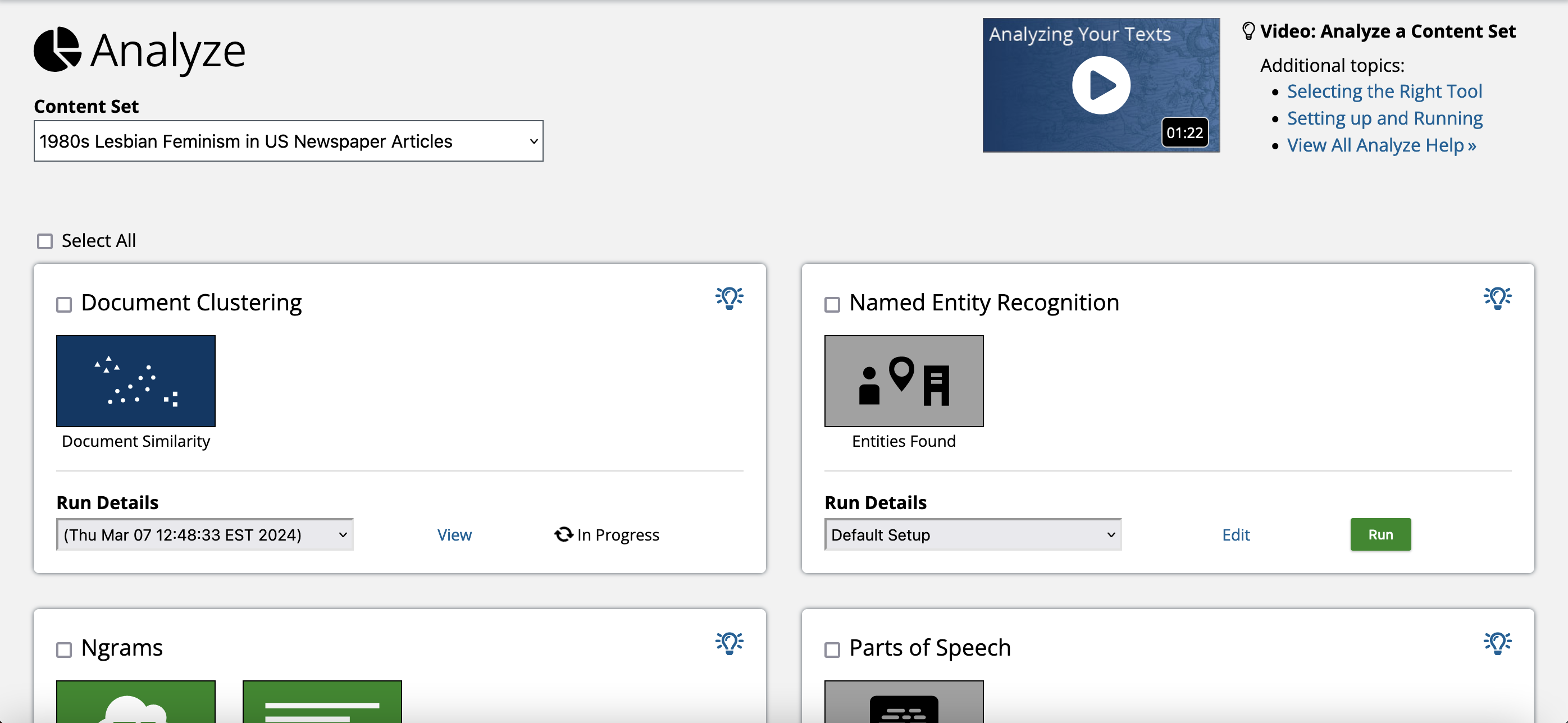
- Click Analyze in the top-level menu.
- Choose a content set from the dropdown.
- If you have not run analysis using this tool before, click Edit to set your parameters (including your clean configuration).
- Alternatively, if you have run analysis using this tool before, click New Setup next to the run details.
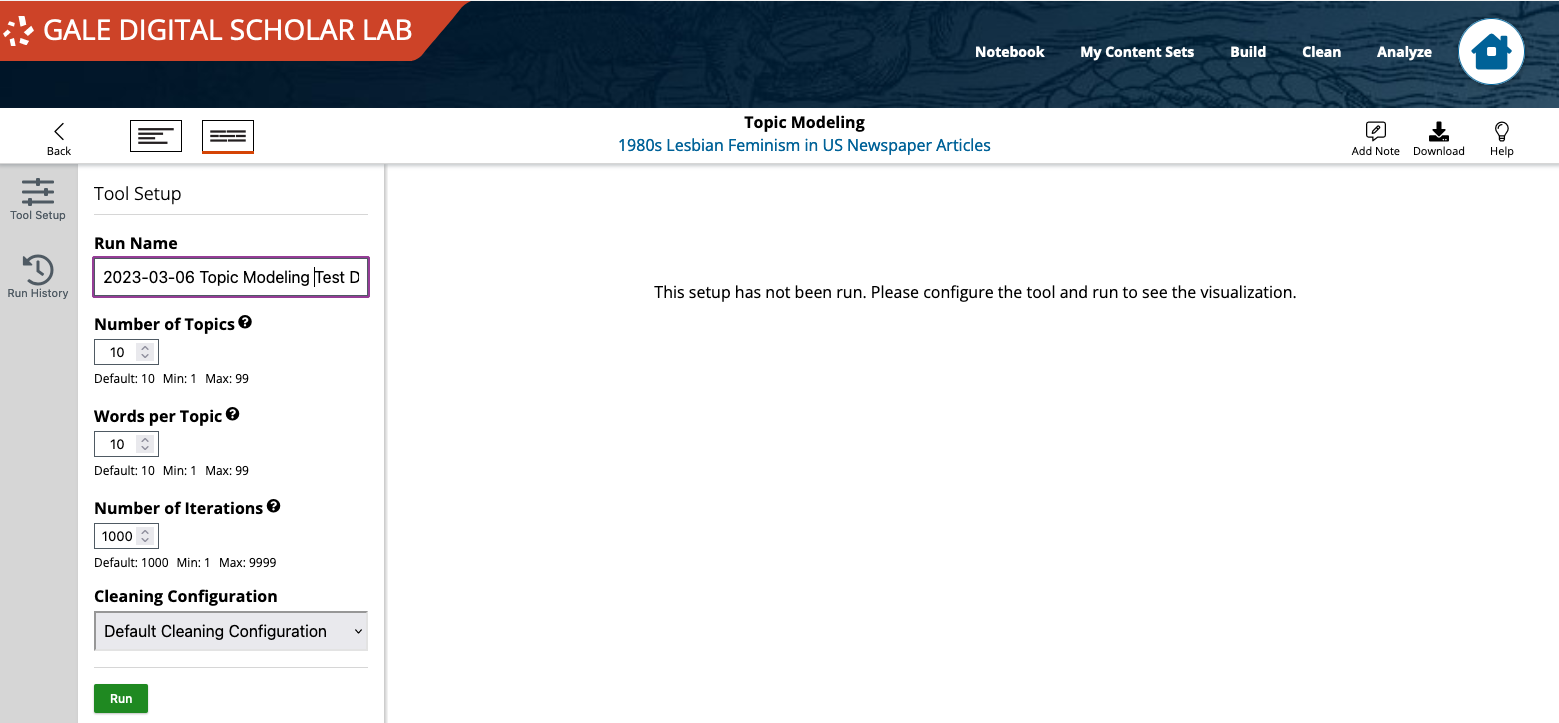
- Alternatively, if you have run analysis using this tool before, click New Setup next to the run details.
- Set your parameters:
- Give your tool setup a name: you can include information like the date or what it is you are trying to do. This is important to do so you can remember which setups are which when you come back to them later.
- Select your cleaning configuration.
- Adjust any other tool settings as desired.
- When you’re ready, click the green Run button.
- Analysis runs in the background: you can refresh the page for status updates, and you can also log out and come back later. When it is done, you will see a green checkmark and the word “Completed.”
- You can view your completed analysis from within Gale Digital Scholar Lab, and you can either download it (as a visualization image and/or as a spreadsheet, depending on the analysis tool). You can use the dropdown under a content set’s tool label to view past runs.
Final Reflection Questions
- What did you find engaging or interesting about Gale Digital Scholar Lab?
- What types of historical research questions could a researcher have about a text or collection of texts?
- How effectively might Gale Digital Scholar Lab be able to address those questions?
- What challenges, frustrations, or limitations did you encounter while using Gale Digital Scholar Lab?
- How would you move forward with Gale Digital Scholar Lab as a tool for historical textual analysis?
- What do you notice is similar about Gale Digital Scholar Lab and Voyant Tools as digital tools for textual analysis? What are the differences? Which did you prefer working with? Why?
Analysis Considerations
Once you have an analysis output from one or more tools, it is up to you to sift through the information given to you by the tool, and conduct your own analysis of its output.
As you look through your analysis, you may notice issues that you would like to correct: perhaps there are errant punctuation marks included, or a persistent misspelling that needs to be addressed. That’s just fine! Text analysis is an iterative process, and Digital Scholar Lab makes it very easy to add or remove documents to/from your content set, create a new cleaning configuration, and run an analysis again with adjusted parameters.
Get Help
Gale Digital Scholar Lab’s Learning Center, which has been linked throughout this tutorial, is a great resource: it has step-by-step walkthroughs and informational videos about every step of the process, from building a content set, to setting up cleaning configurations, to performing analysis.
And if you have questions, need help, get stuck, or want support trying something new, there are many support resources out there for you!
- Swing by Vivero drop-in peer mentoring hours: Vivero Digital Fellows trained in a variety of digital tools and approaches hold peer mentoring drop-in hours from 7-9 PM in the Burling Library Media Room (lower level) Sundays through Thursdays every week while classes are in session.
- Contact Tierney Steelberg, Digital Liberal Arts Specialist, via email at steelber@grinnell.edu
- Contact Libby Cave, Digital Humanities and Instruction Librarian, via email at caveelizabeth@grinnell.edu

